)
)
)
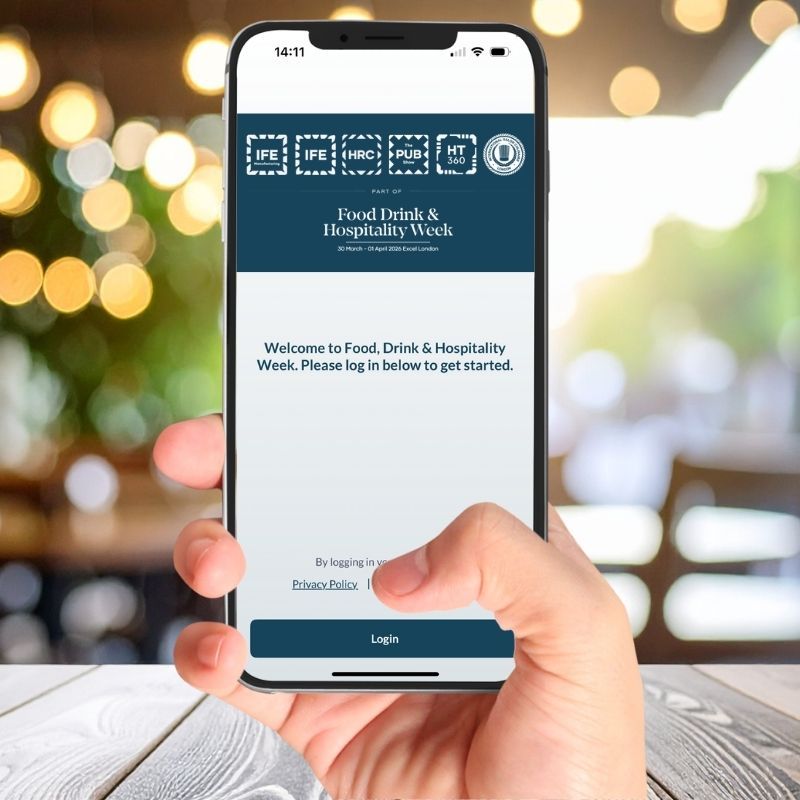
Download now
Find the right people to meet at Food, Drink & Hospitality Week 2026 and manage your schedule throughout this jam-packed event.
Once your registration has been confirmed, you'll receive an email from our app provider, Grip, that contains your login information. Log into the app with your badge ID and make sure your profile is correct - don't forget to add a photo of yourself!
The app will also give you access to your badge barcode. When you arrive at the show, please display the barcode to staff at registration to have your badge printed on arrival.
Please note: If you have just registered, it will take an hour before you can login to the app successfully.


Included in the App:
-
Access your visitor badge
Display your badge barcode to staff at registration to have your badge printed on arrival - this year we will not have print at home badges available. -
AI-powered matchmaking
Get personalised recommendations for brands, sessions and connections to support your business goals. -
Build your event schedule
Add sessions and meetings to your personal schedule to plan your day and make the most of your time at the event. -
Explore the event before you arrive
View the full exhibitor list, products, speakers, partners, and event agenda in advance. -
Interactive show floor map
Navigate the show floor easily and find exhibitors, products, and key areas quickly.
- Live updates and reminders
Stay informed with real-time announcements and personalised push notifications. -
Easy networking and meetings
Send messages and book unlimited meetings all in one place. -
Built-in Lead Capture (Exhibitors only)
Scan attendee badges, qualify leads, and export them for follow-up. Offline scanning included. -
Team management tools (Exhibitors only)
Manage your company profile and team members directly within the app. -
AI matchmaking (for Exhibitors & Visitors)
Get recommended connections based on your product categories (Exhibitors) and interests (Visitors).
FAQs
After registering and once the app is live, you can log in using the same email address you used to register for the event. Check back on this web page to see when it is available to download!
If you are a first-time user, you will need to use your Registration ID (located on your badge PDF) as the password.
Returning users can log in with their registered email and the password created during initial set up. If you have forgotten your password, click on the "Email me a password reset link" to reset it.
If you are an exhibitor, you must have set up your staff badges in the Exhibitor Hub before you can access the app, as you will need the badge Registration ID to log in the first time.
After registering, it can take up to one hour for your details to sync with the app. Please wait one hour before trying to log in.
Please note: the app is not yet live so you will be unable to log in until it is. Check back on this web page to see when it is available to download!
To access your visitor badge please log in to the app and navigate to "My Digital Badge" on the homepage.
You will need to show our registration team this QR code on arrival at the event in order to get your badge printed.
The app is your digital guide to Food, Drink & Hospitality Week. You can:
-
View the full exhibitor list
-
Browse the event agenda, products, speakers, and partners
-
Book and manage meetings
-
Build your personal schedule
-
View the show floorplan
-
Receive networking recommendations
-
Scan your leads (exhibitors only)
-
Manage your team (exhibitors only)
-
Download all your leads (exhibitors only)
Yes. Once the app has gone live you can export your connections or meetings from the web platform only.
Log in on desktop, go to your user profile, select Export, and choose meetings or connections.
Yes. Meetings can sync to iCal, Google, Outlook, and Yahoo calendars.
Updates to meetings or sessions will automatically appear in your calendar, although timing may vary depending on your calendar provider.
The ‘My Team’ portal is your team’s central hub for managing meetings, leads, messaging, and company profile configuration. Teams are automatically created when the first representative from your company logs into the platform.
You can find the ‘My Team’ portal in the top-right corner of the event platform when using the desktop web version. This area allows your team to collaborate, manage leads, respond to messages, and update your company profile. The portal includes:
- Meetings
- Leads
- Company Chat
- Contacts
- Team Members
- Company Profile
- Products (if enabled by event organiser)
- Settings (if enabled by event organiser)
- Export
Click here to read more on the Grip Knowledge Hub.
First, check that:
-
You are registered for Food, Drink & Hospitality Week
-
Your app and device software are up to date
You can access the Grip Knowledge Hub here which holds a whole host of information about how the app works. You can also reach out to Grip Support via this page.
You will also be able to get support onsite during the event.
)
)
)
)
)
)
)
)
)
)
)
)
)
)
)
)
)
)
)
)
)
)
)